
Wi-Fi AND INTERNET KITS FOR CAMPERS, MOTORHOMES AND CARAVANS
Configure the APN (Access Point Name) on the Router
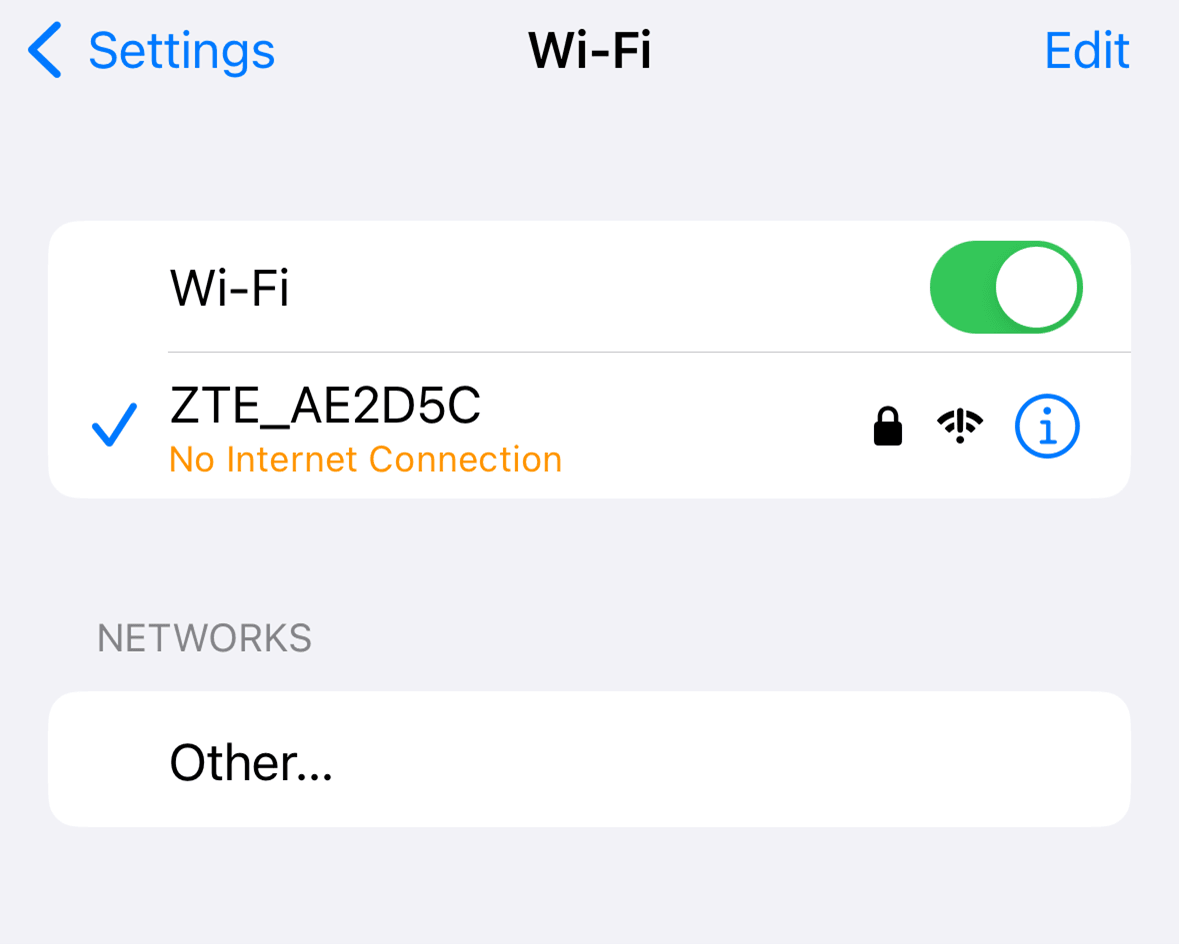
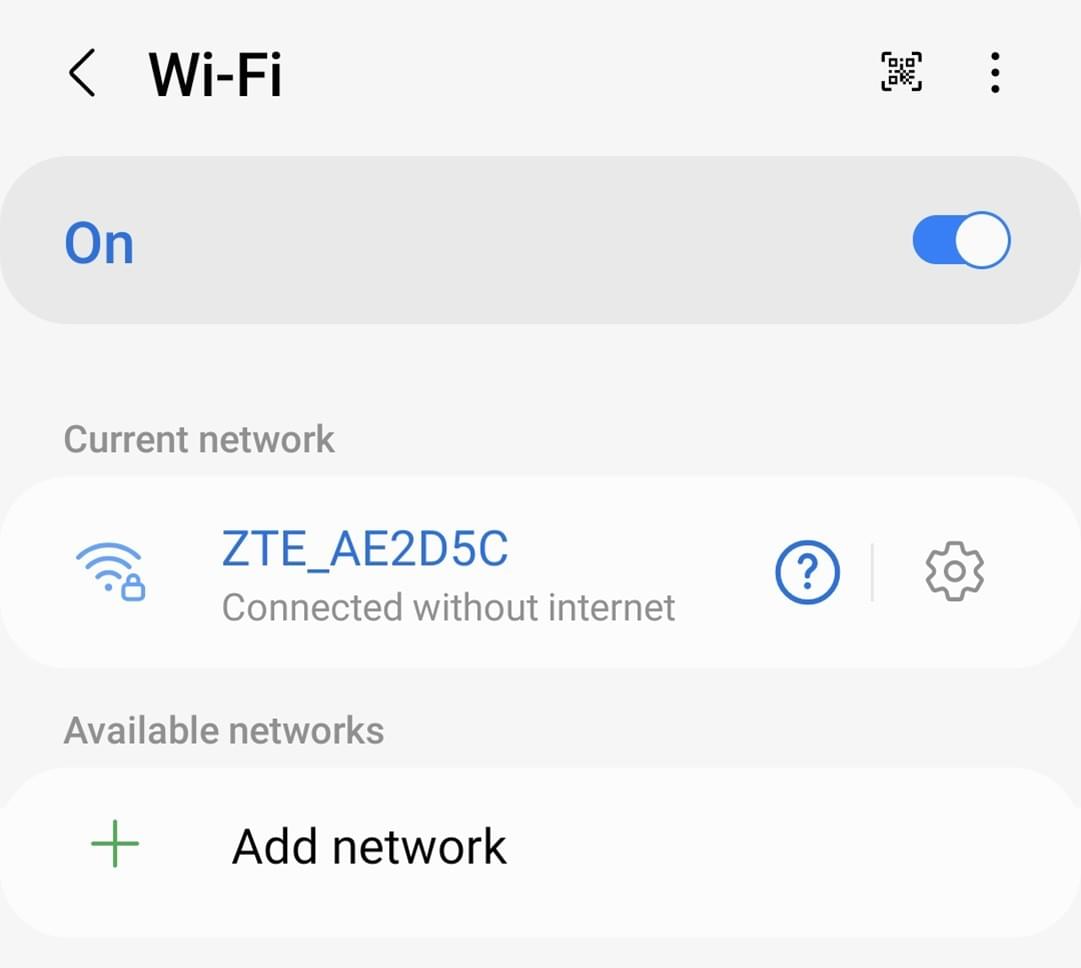
1. Connect to the Wi-Fi of the device, either manually or by scanning the QR code on the front of the device.
If you are troubleshooting connectivity issues, you may see ‘No Internet Connection’ (Apple) or ‘Connected without internet’
(Android).Apple iPhone
Android Phone
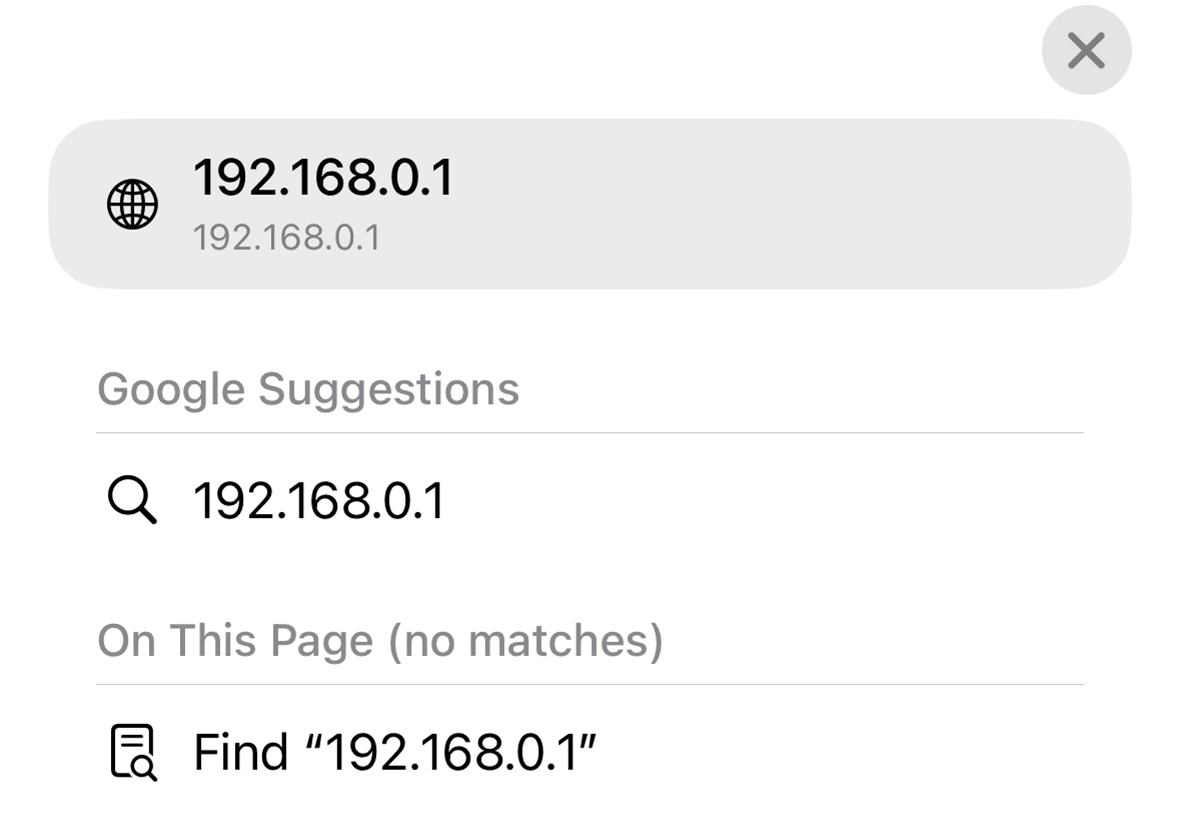
2. Open any browser on your device, for example Safari on Appleor Chrome on Android.
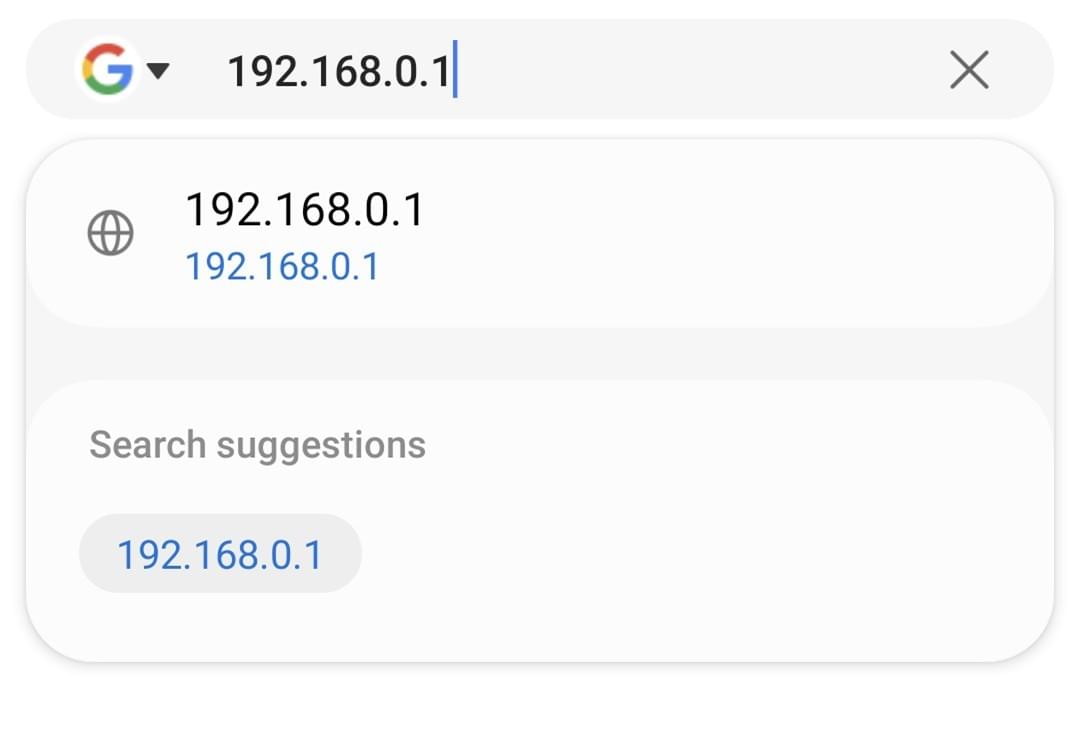
Enter the following in the address bar. 192.168.0.1
Then tap ‘Go’.
Apple iPhone
Android Phone
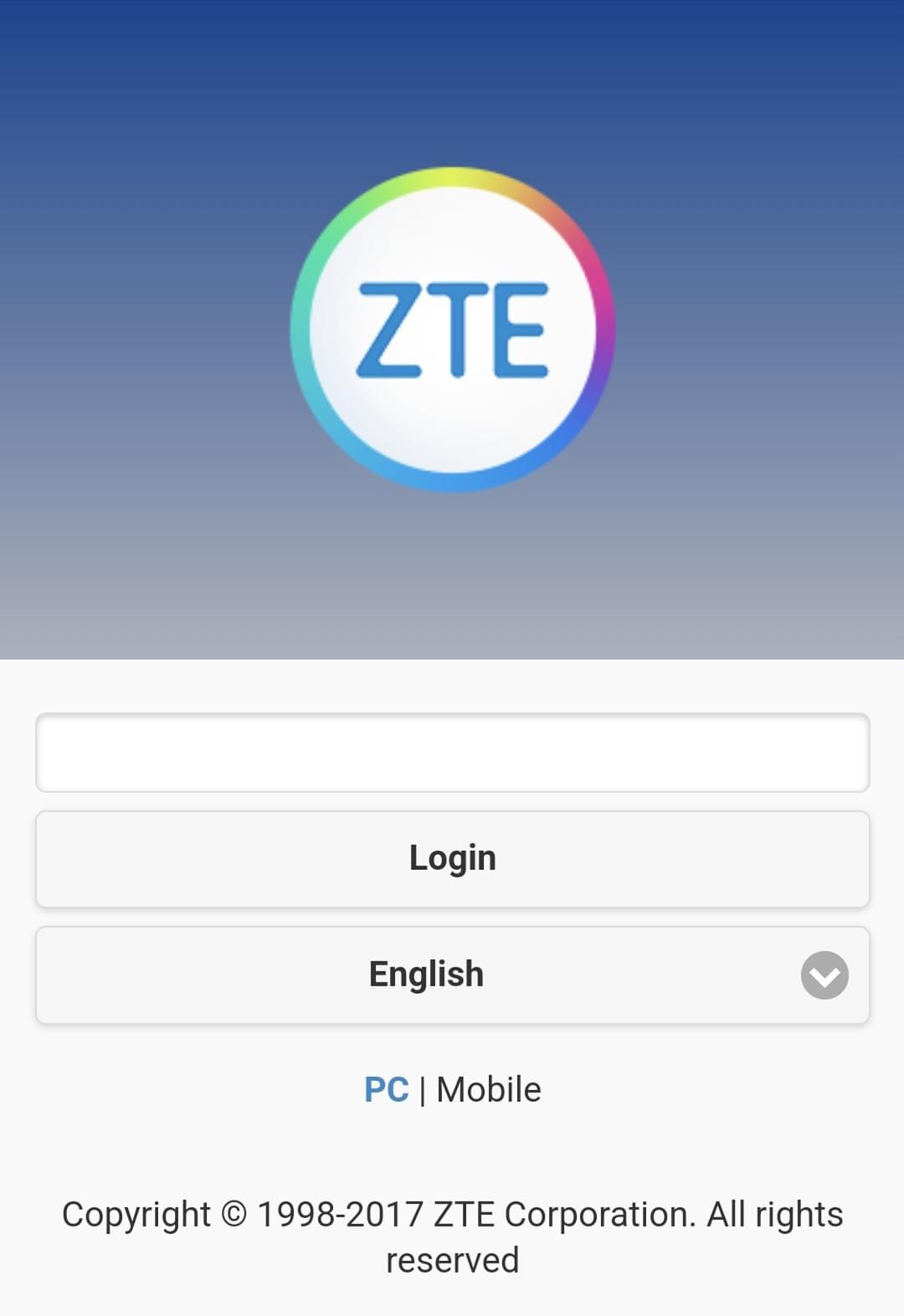
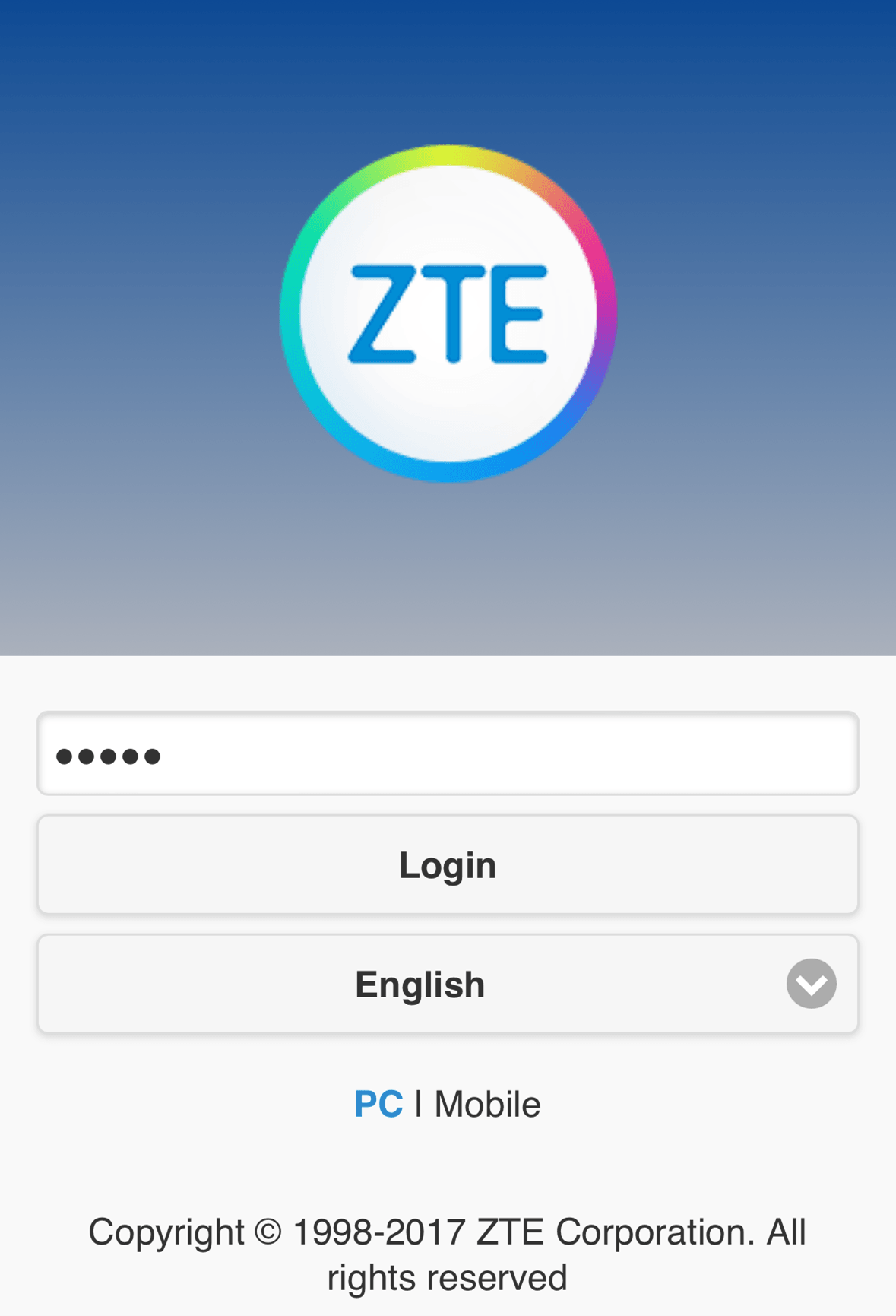
3. Next you will see a logon page for the router.
Check the back of your router for your admin password.
It will be on the label, after Admin Pwd: ___________
For Cat 6 devices it is admin.
For Cat 12 devices or 5G devices, it will be amore complex password written on the label on the back.
Then tap ‘Login’.Apple iPhone
Android Phone
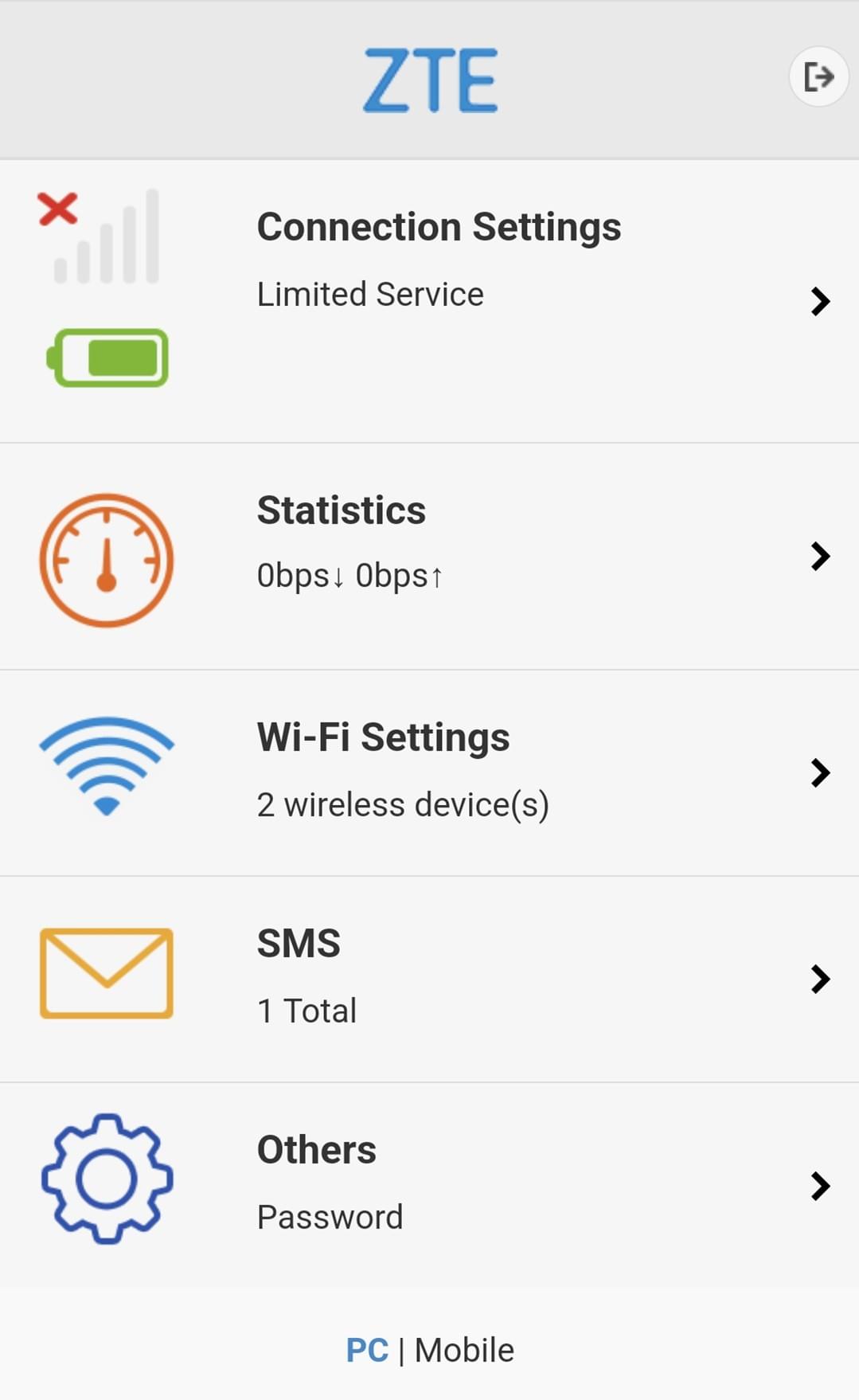
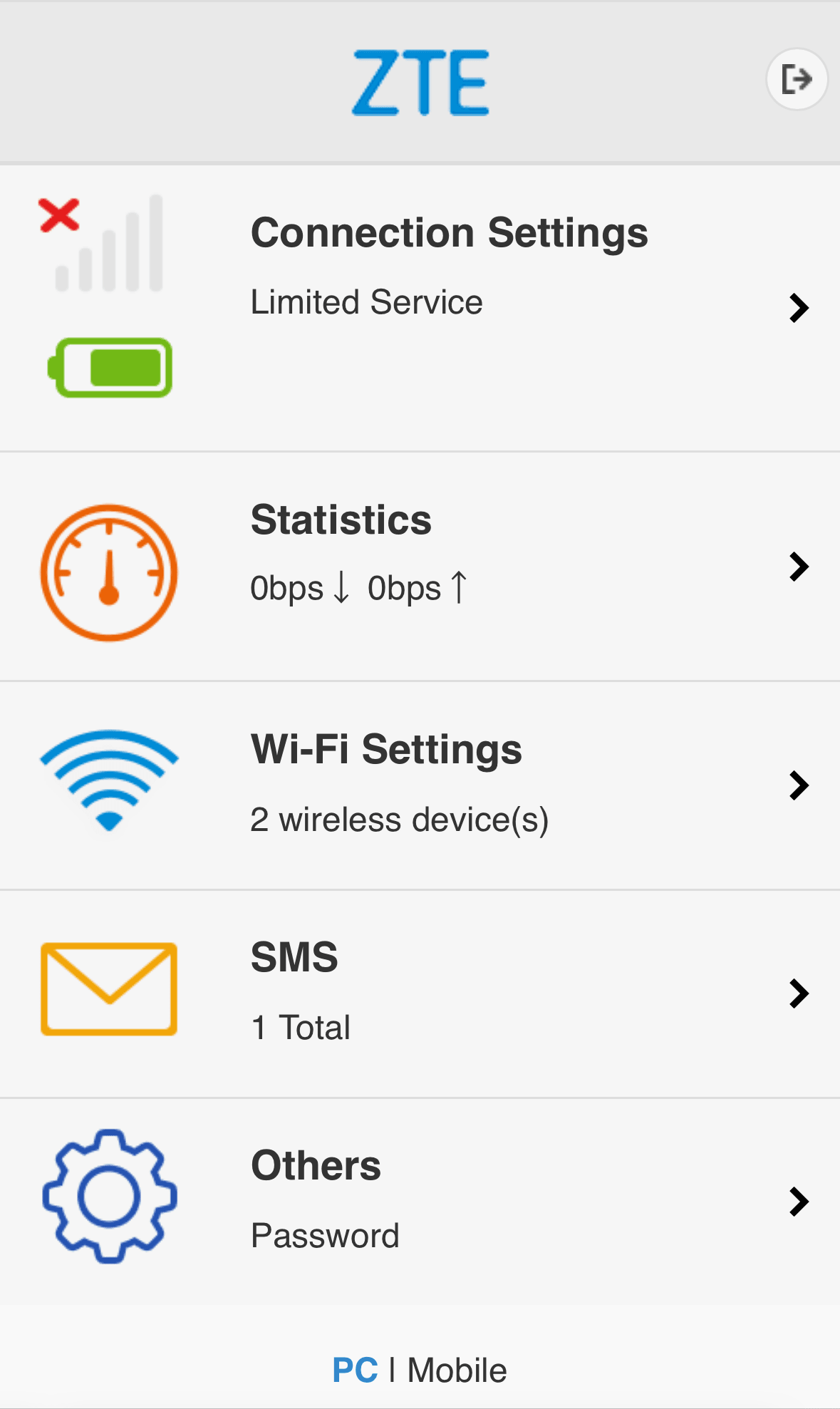
4. Next you will see the Router administration page.
As you will see, this is optimised for small mobile screens.
The setting we need is only available on the full PC version of this administration page.
Tap ‘PC’ at the bottom of the mobile optimised page.Apple iPhone
Android Phone
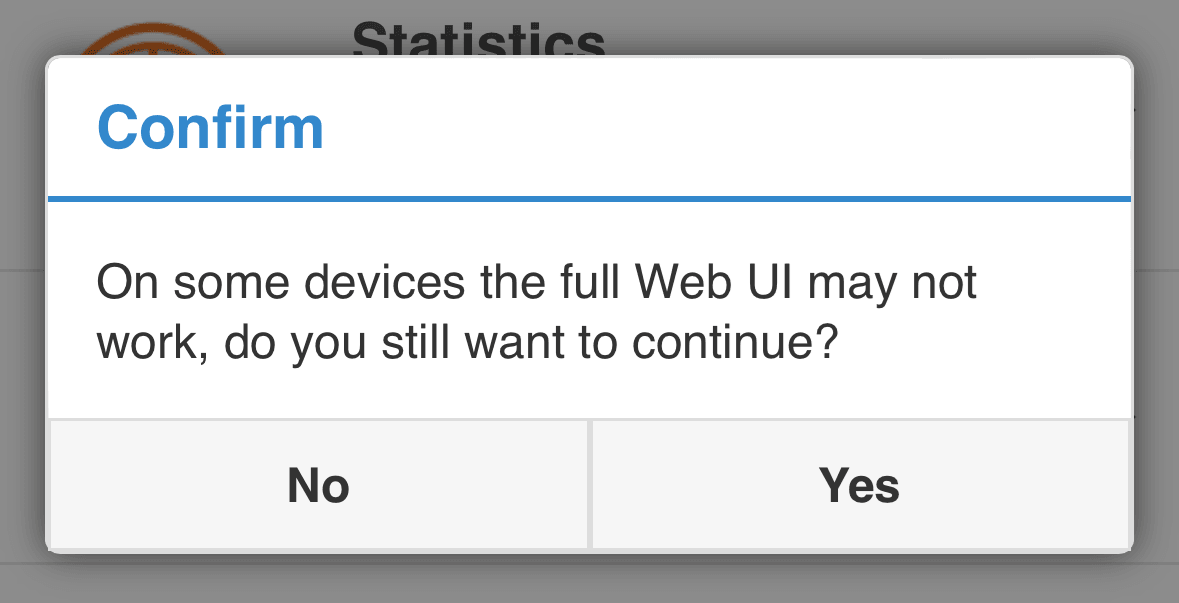
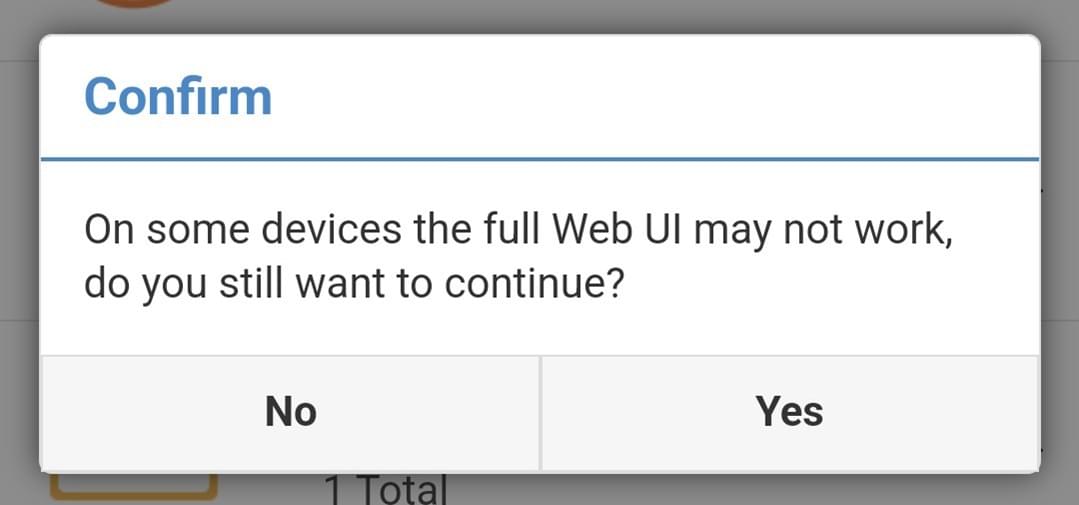
5. You will see a confirmation window, tap ‘Yes’.
Apple iPhone
Android Phone
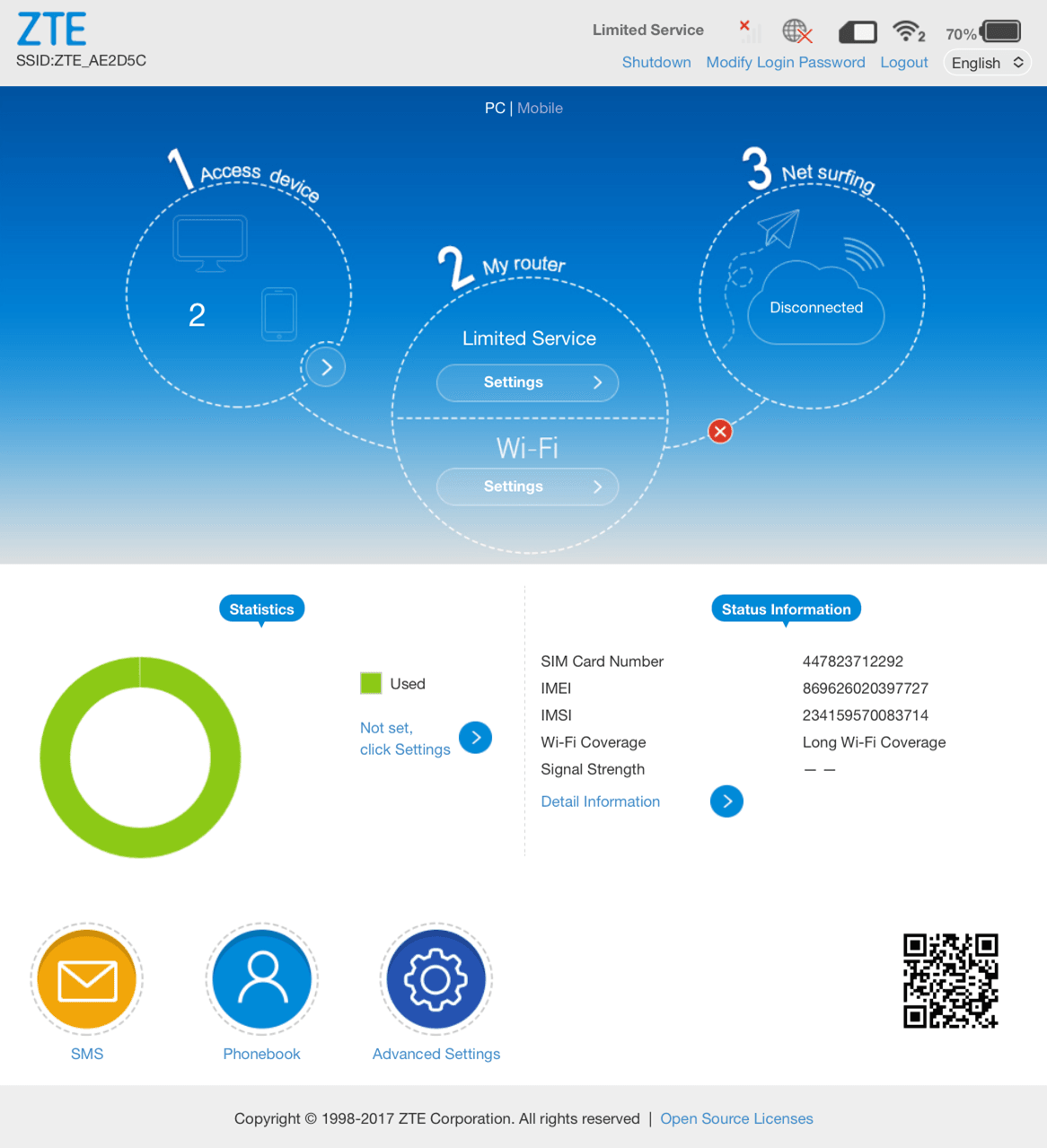
6. This is the PC based administration page. It will appear quite small on your mobile device, and you may find it easier if you turn your
phone to landscape.
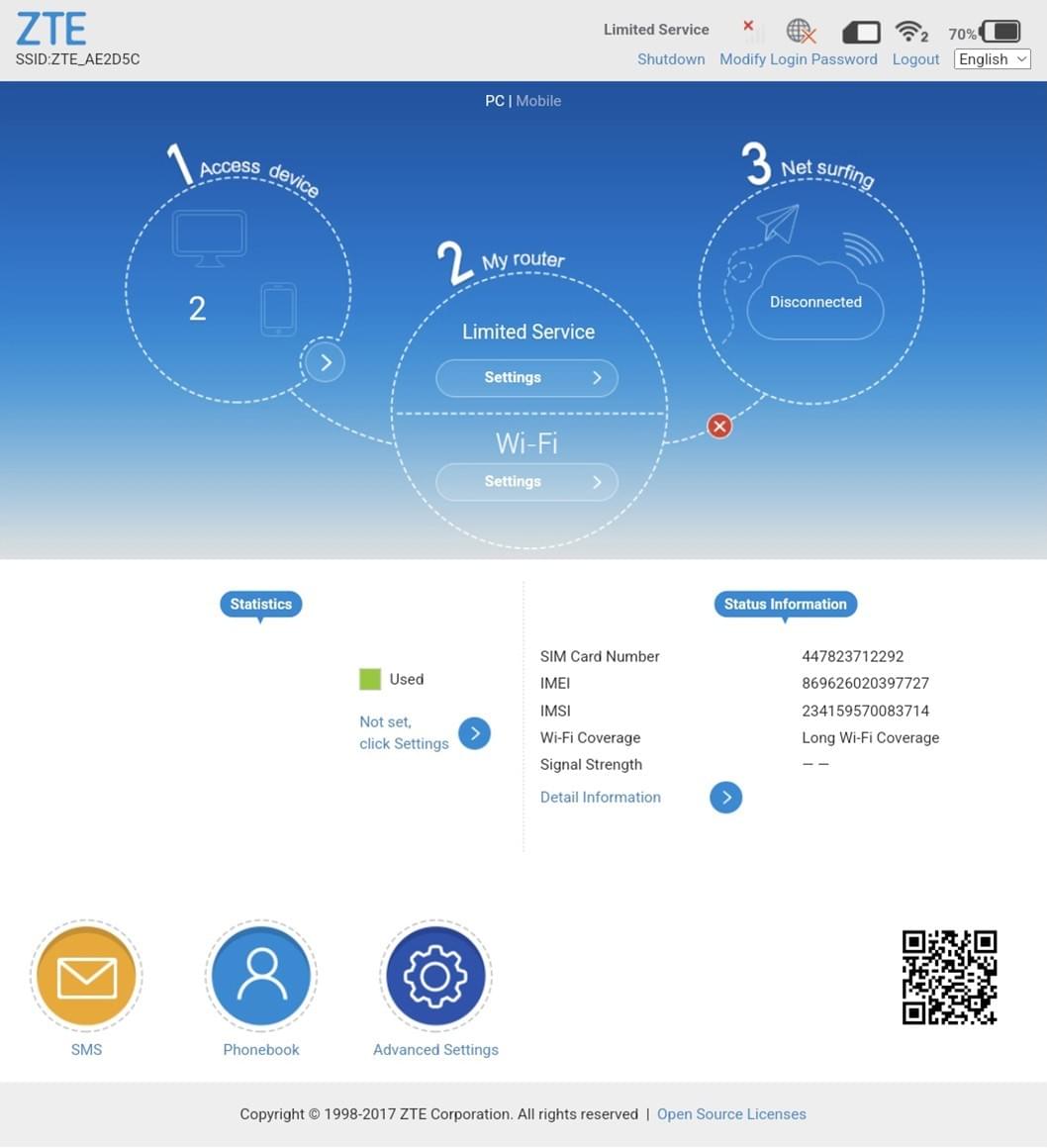
In the middle circle, you will see a button ‘Settings’, tap this.Apple iPhone
Android Phone
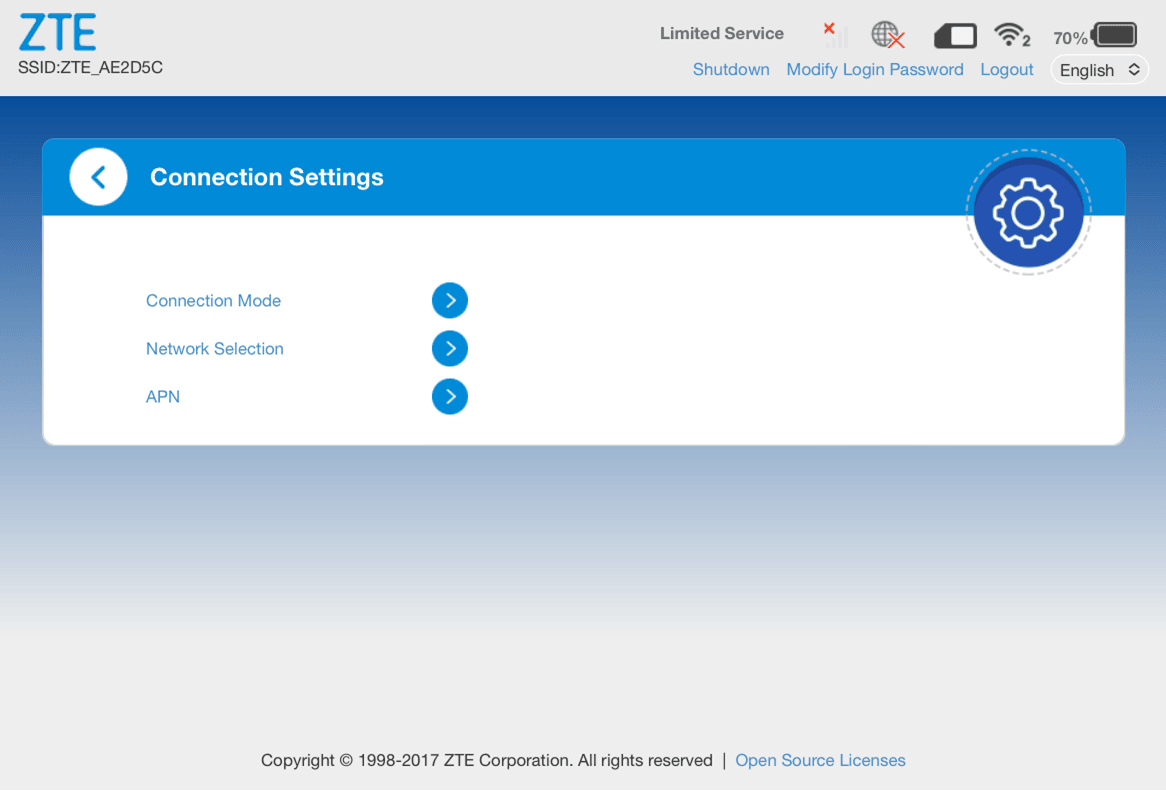
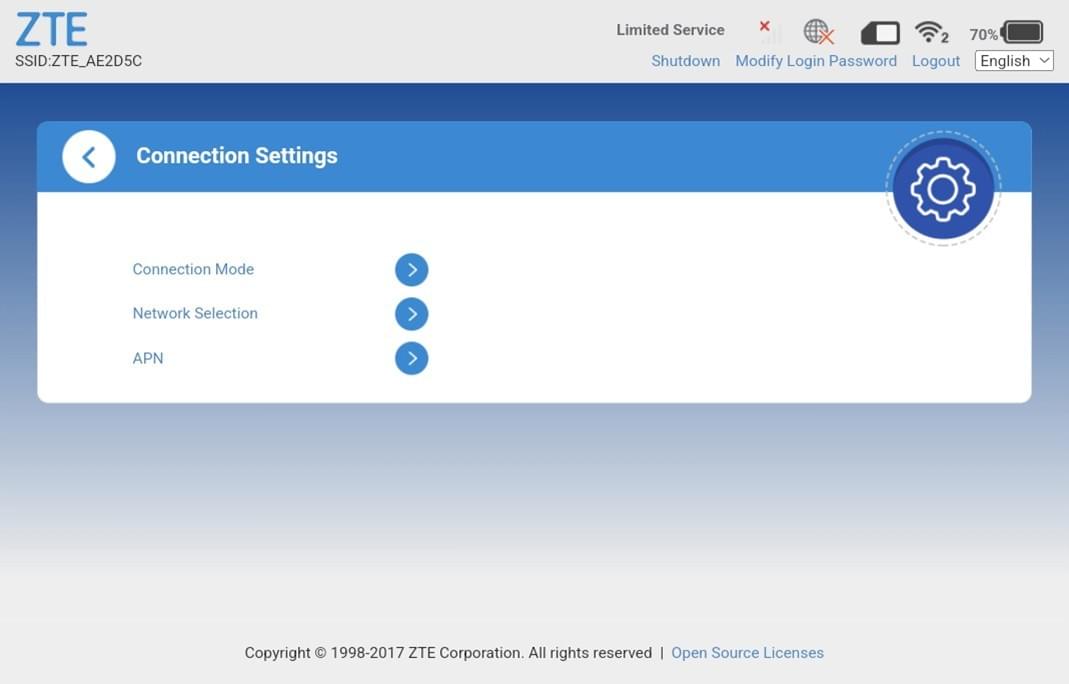
7. Here you will see three options.
Tap ‘APN’.Apple iPhone
Android Phone
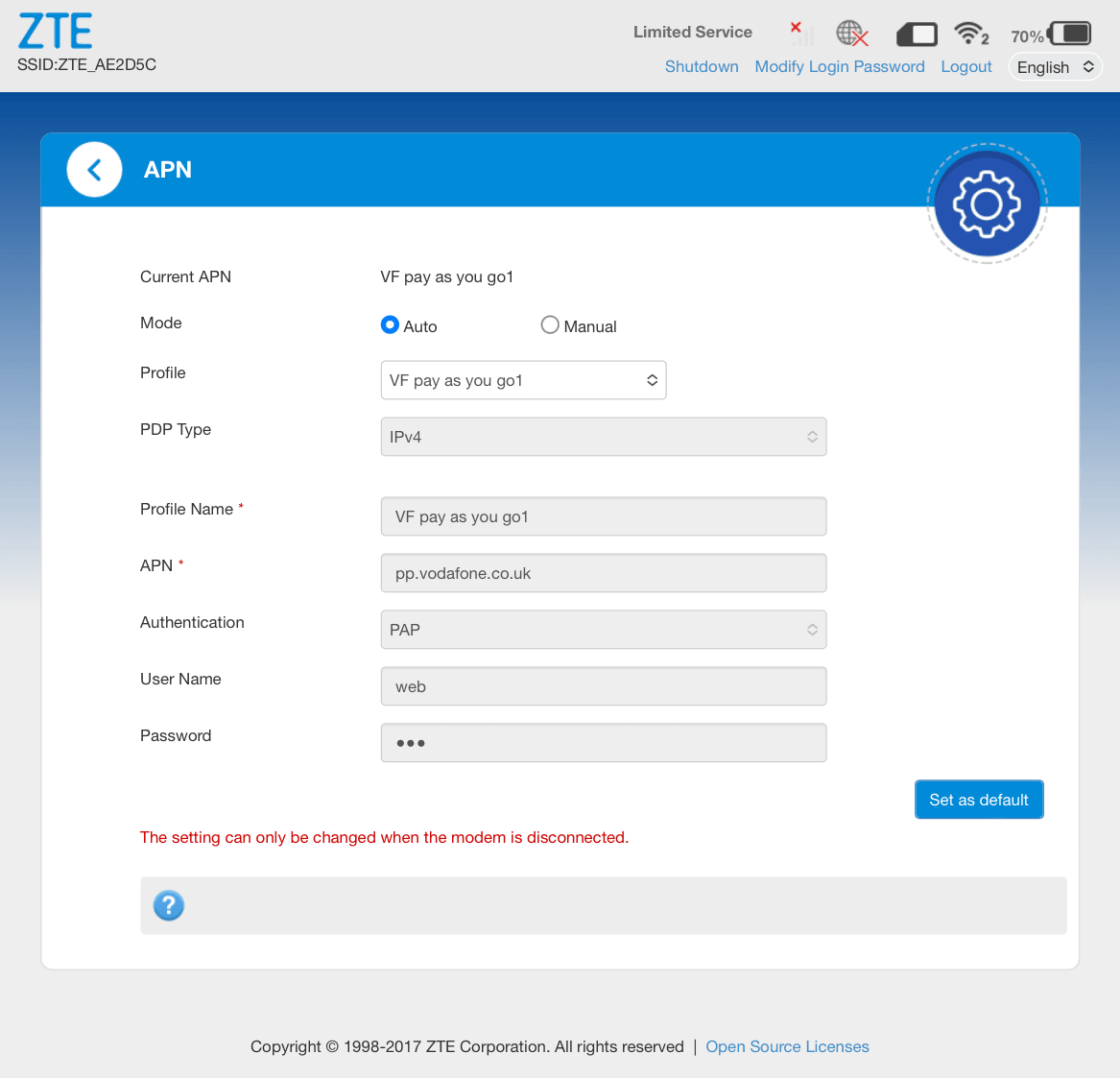
8. Here you will see your APN settings. These are essential for your router to connect to the internet. In most cases, the device automatically
receives these settings when you power it on with a new SIM card inserted.
Sometimes this process does not work, and we must set them manually.
The example shown here is incorrect for the SIM inserted. As you’ll see at the top of the page, it is showing ‘Limited Service’
and there is a red X over the globe (internet) icon.Apple iPhone
Android Phone
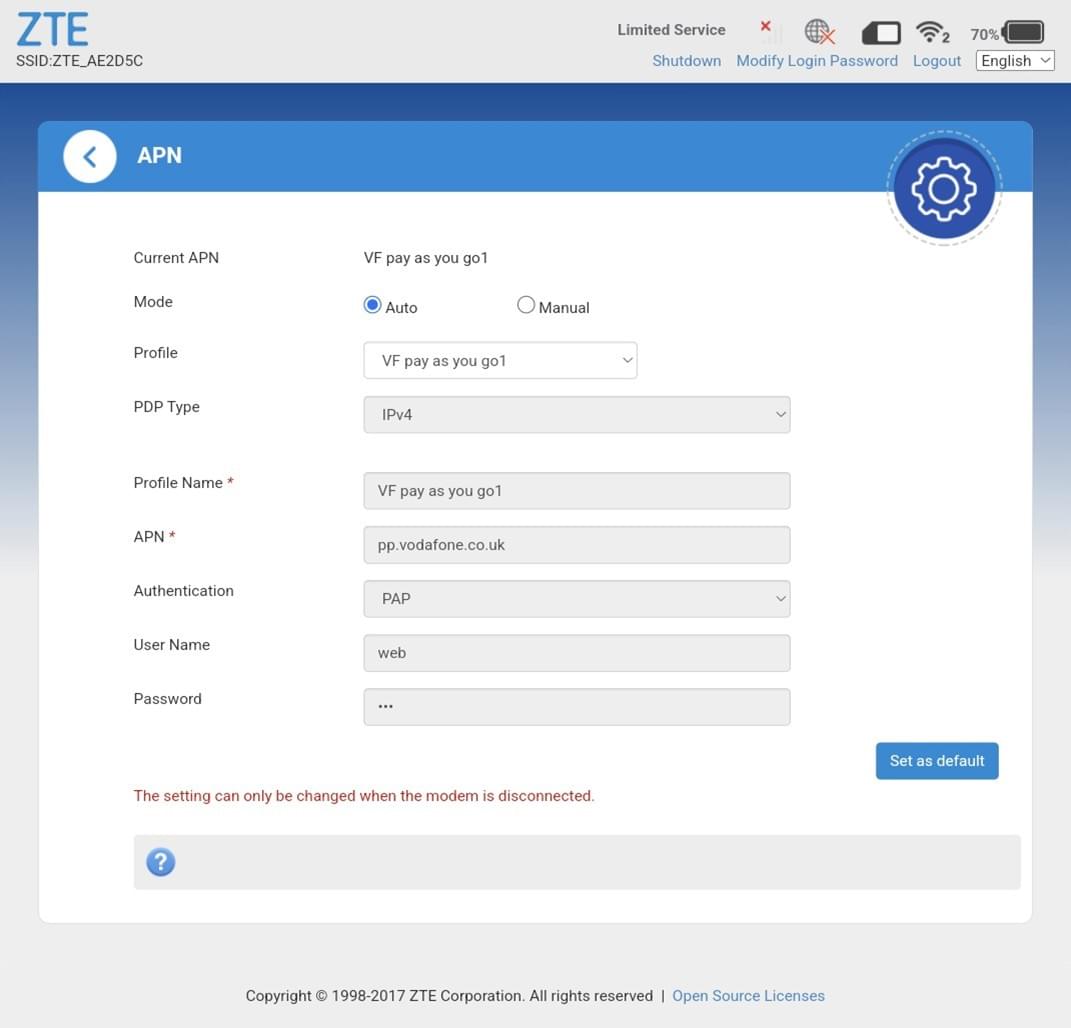
9. Tap ‘Manual’
Apple iPhone
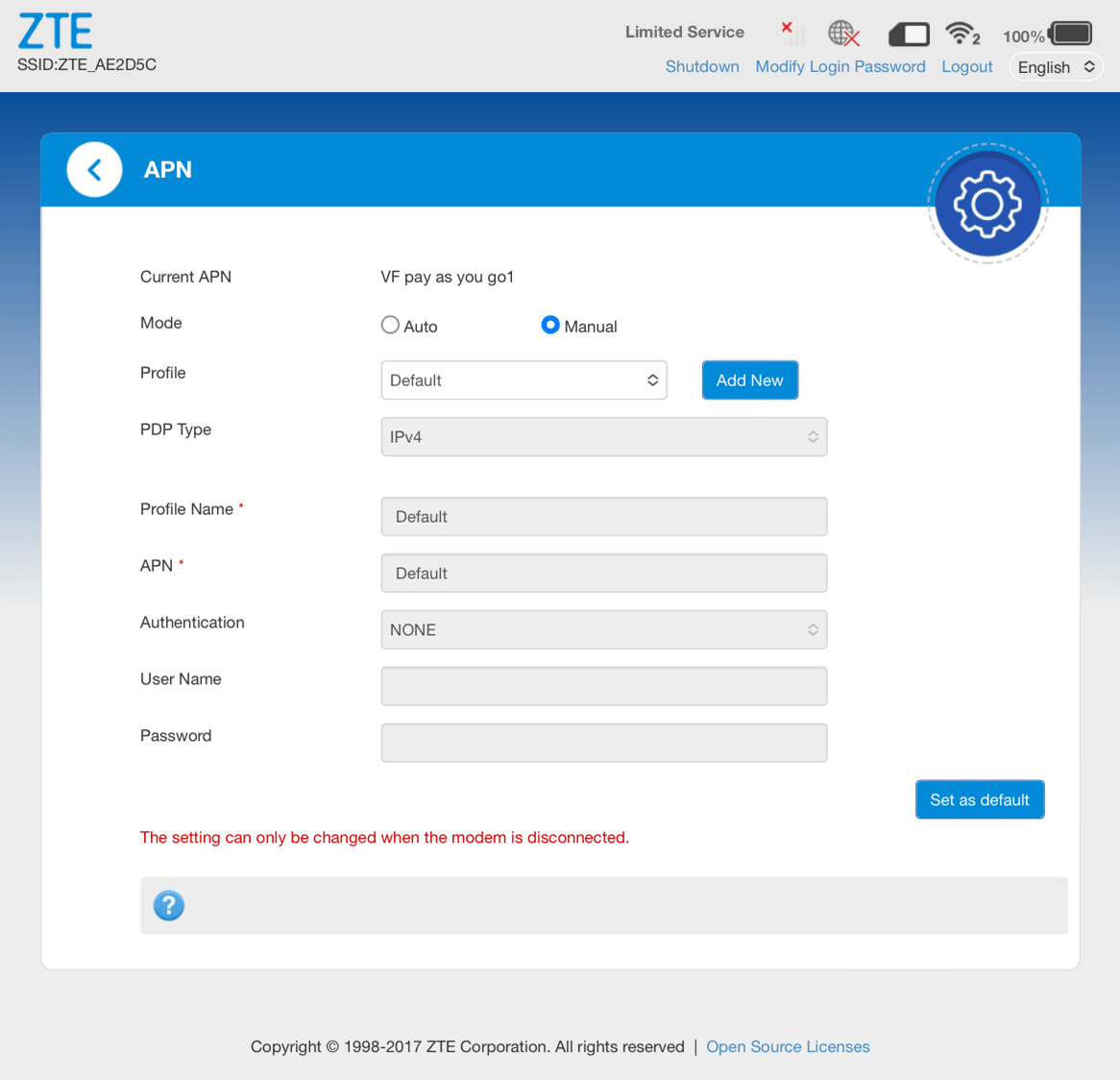
Android Phone
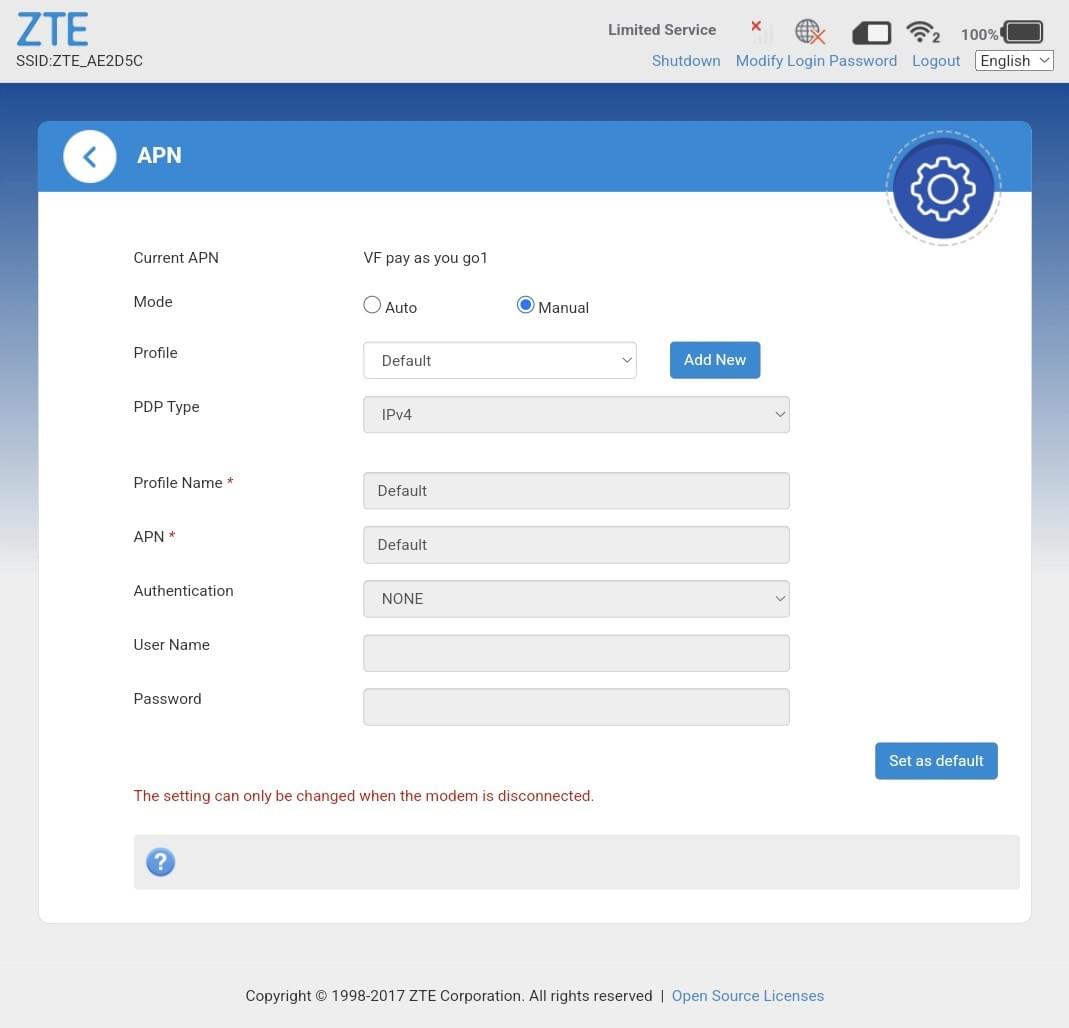
10. Tap ‘Add New’
Enter any profile name you chose, and the APN according to the table at the end of this document.
Apple iPhone
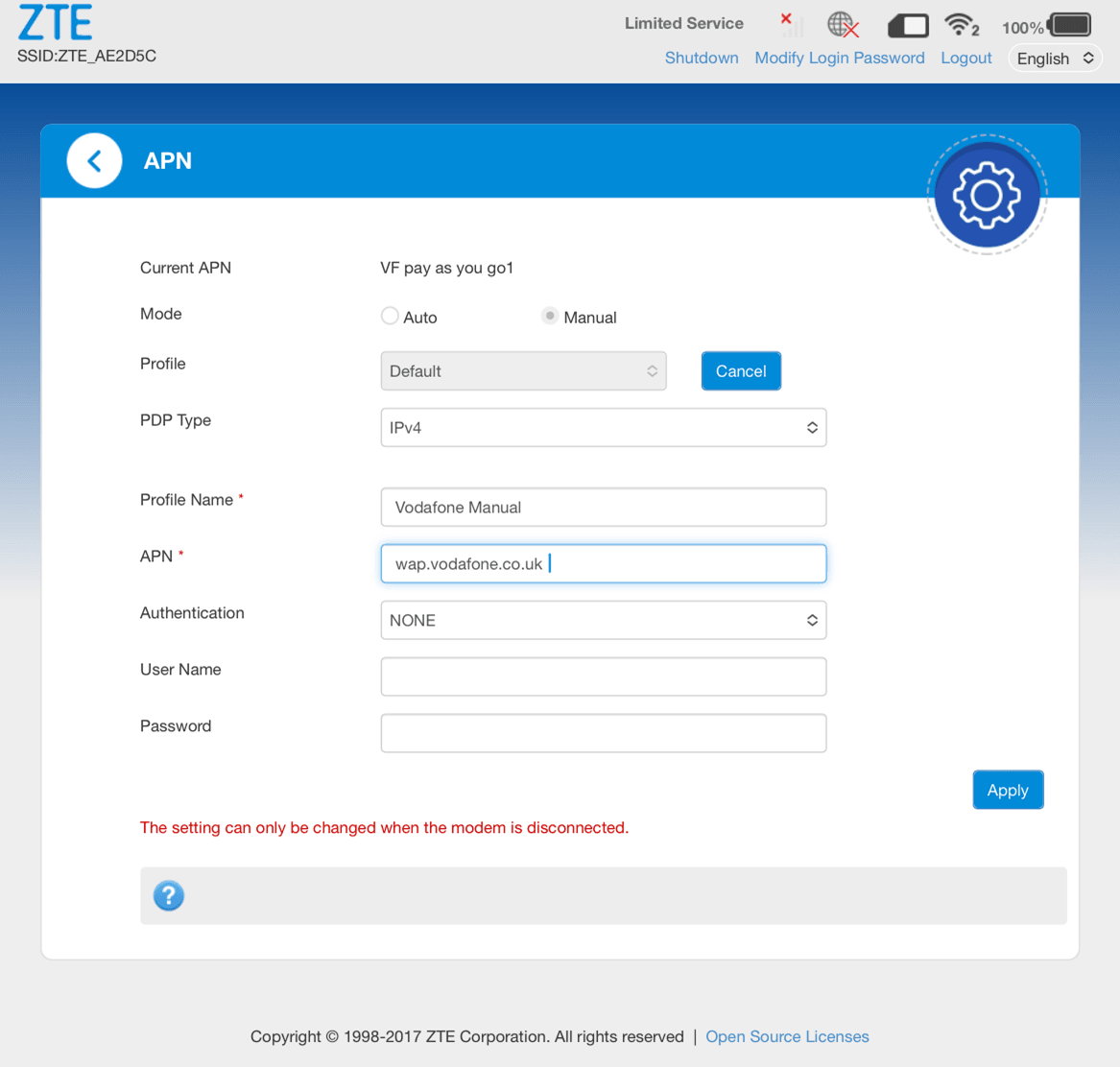
Android Phone
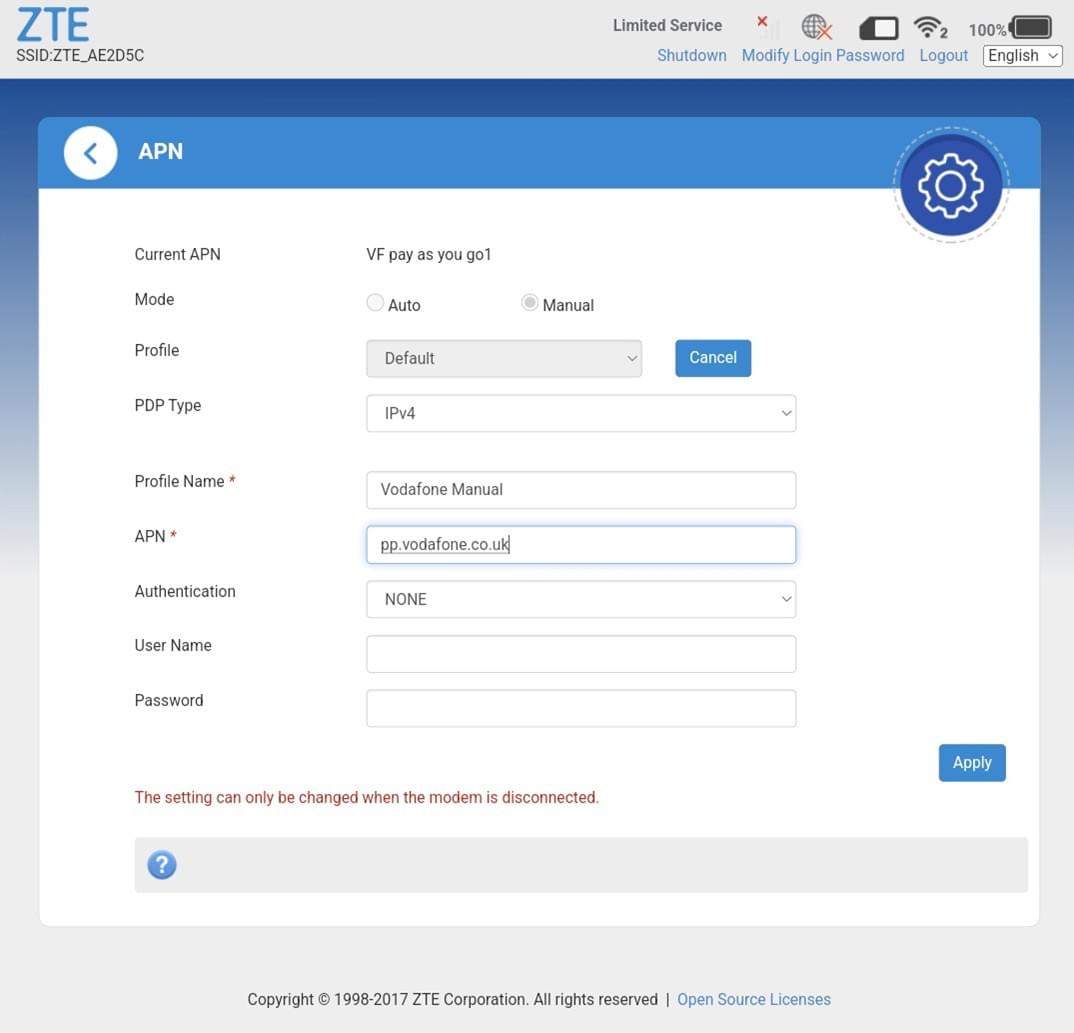
11. Tap ‘Apply’. You will see ‘Success’.
Apple iPhone

Android Phone

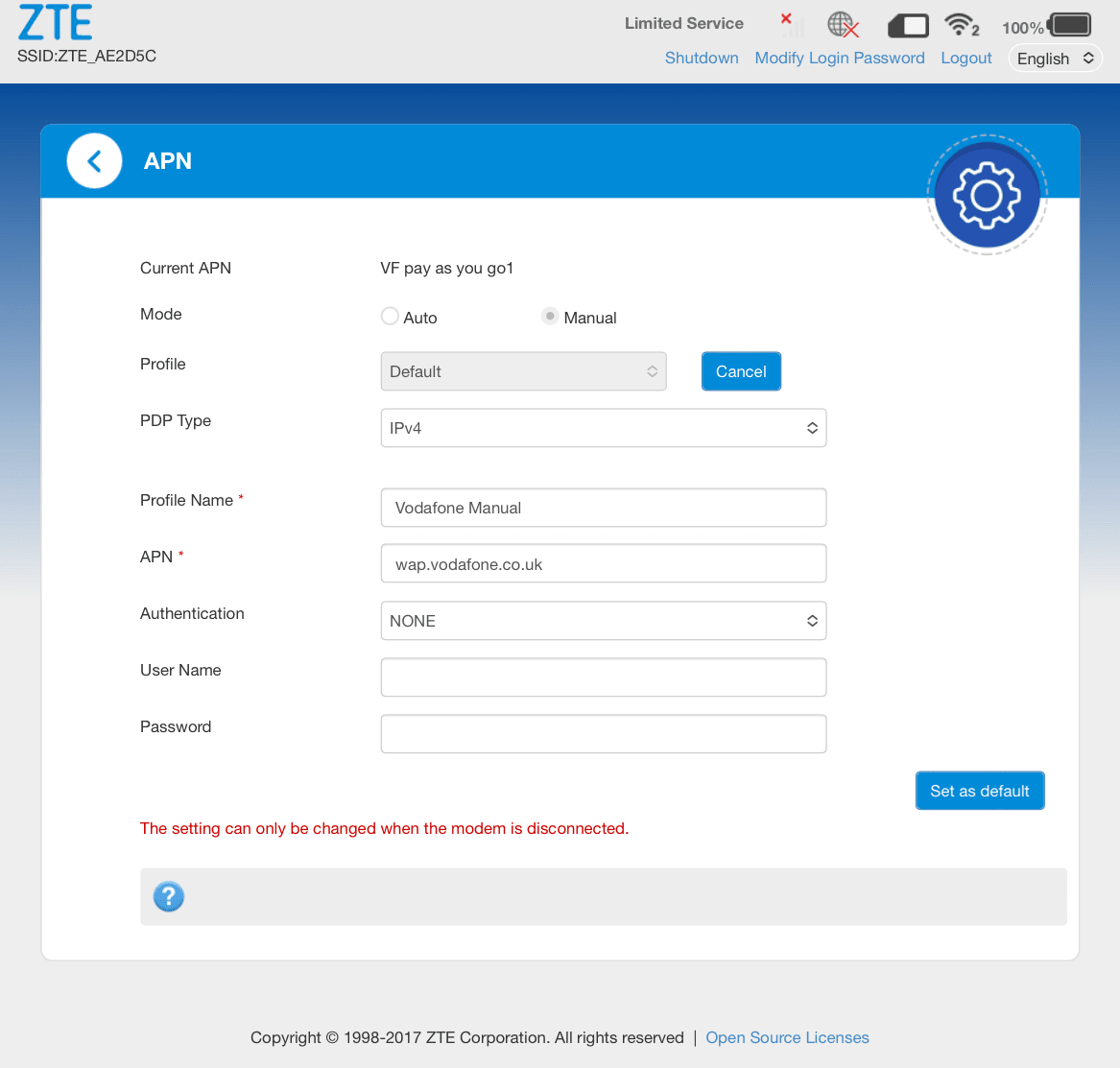
12. Tap ‘Set as Default’.
Apple iPhone
Android Phone
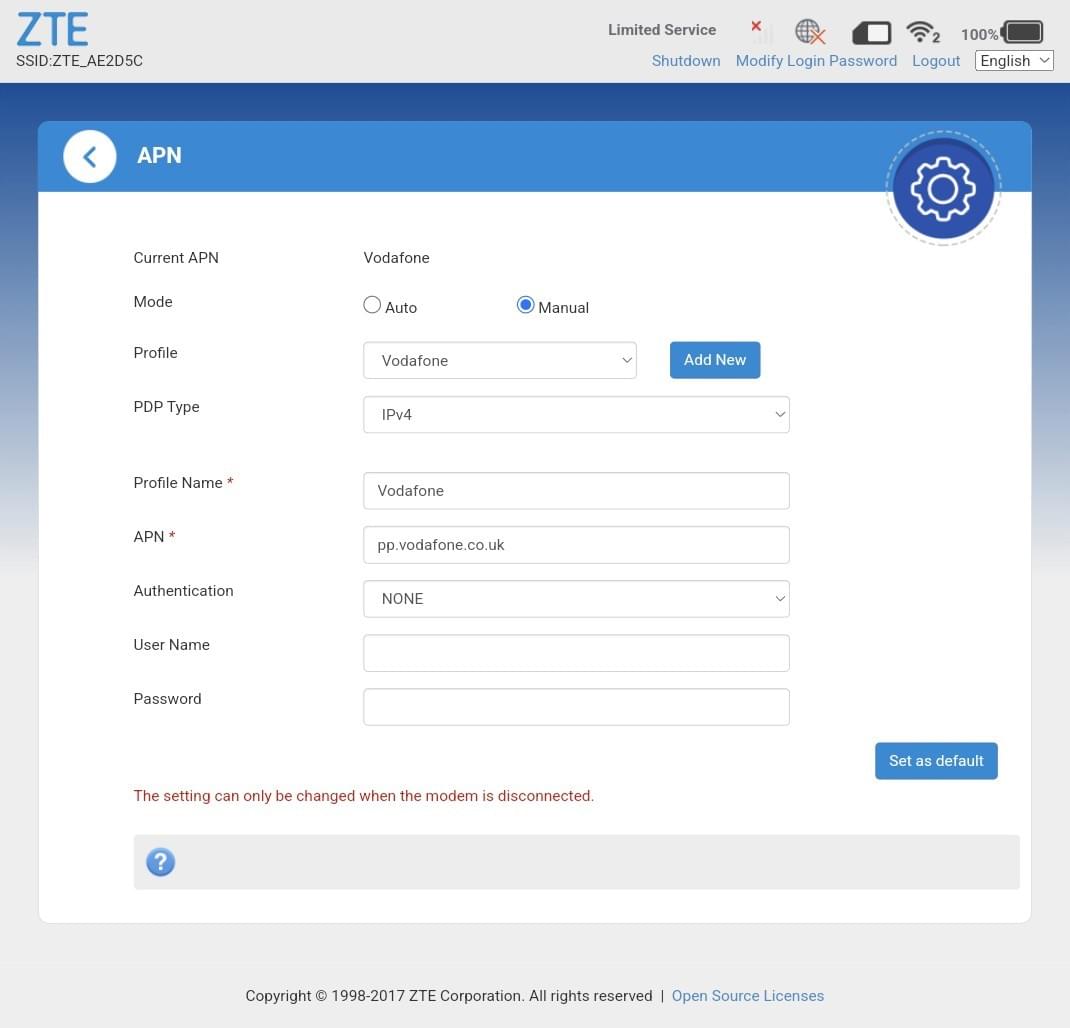
13. You will see ‘Success’.
Apple iPhone

Android Phone

14. You will need to restart the router to apply the changes.
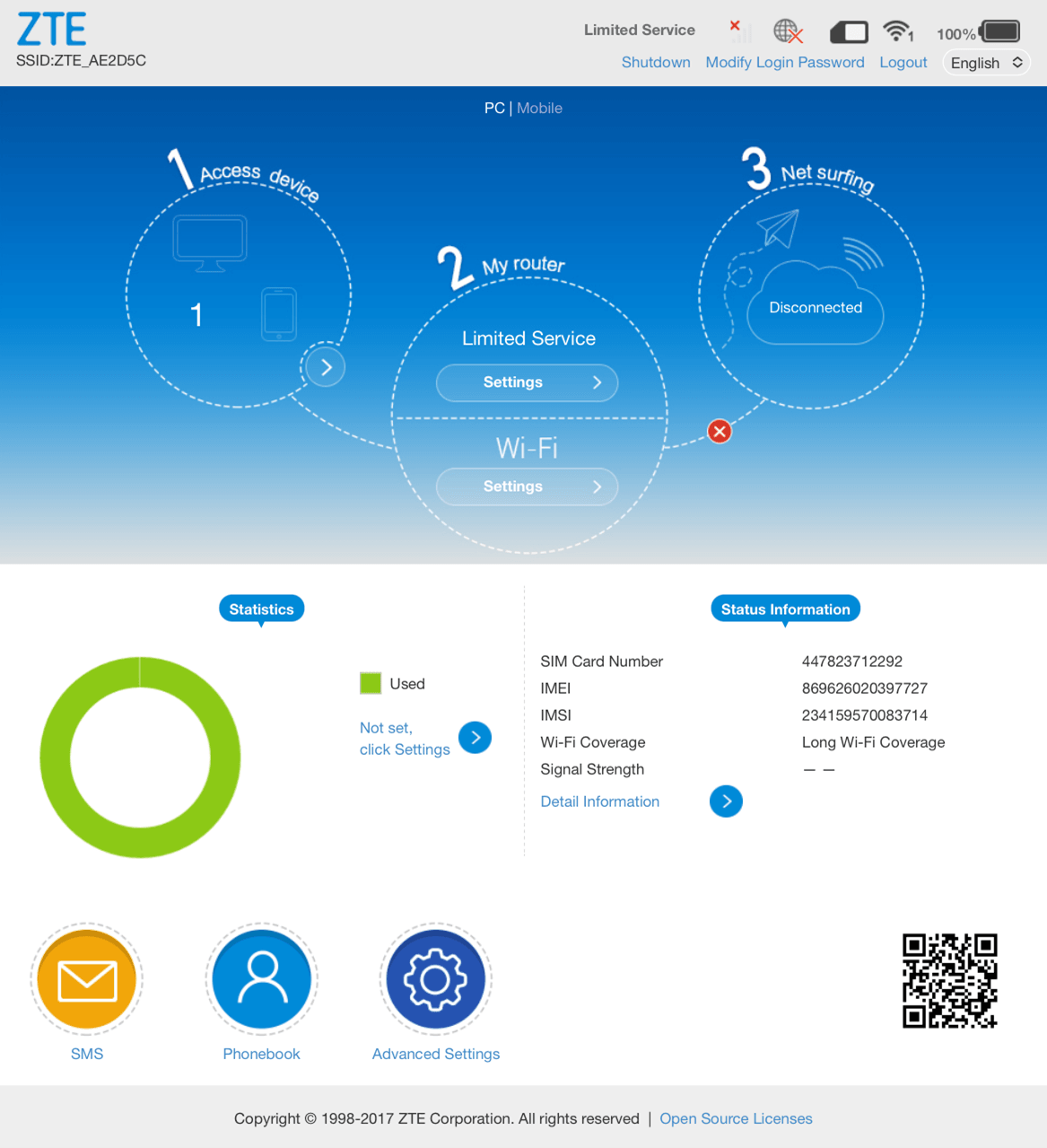
Click the ZTE top left of the page. This will take you back to the home page.
Click ‘Advanced Settings’.Apple iPhone
Android Phone
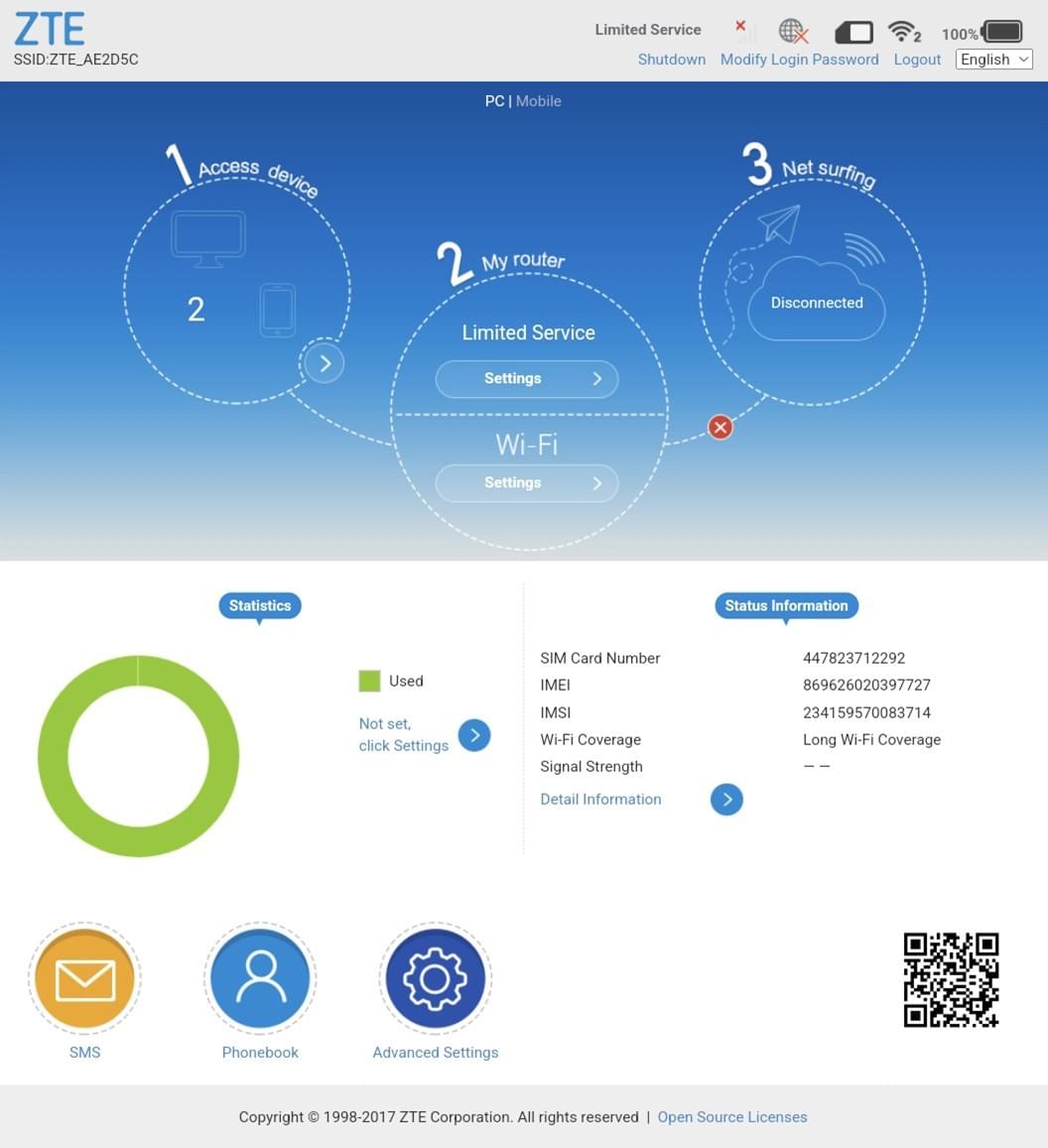
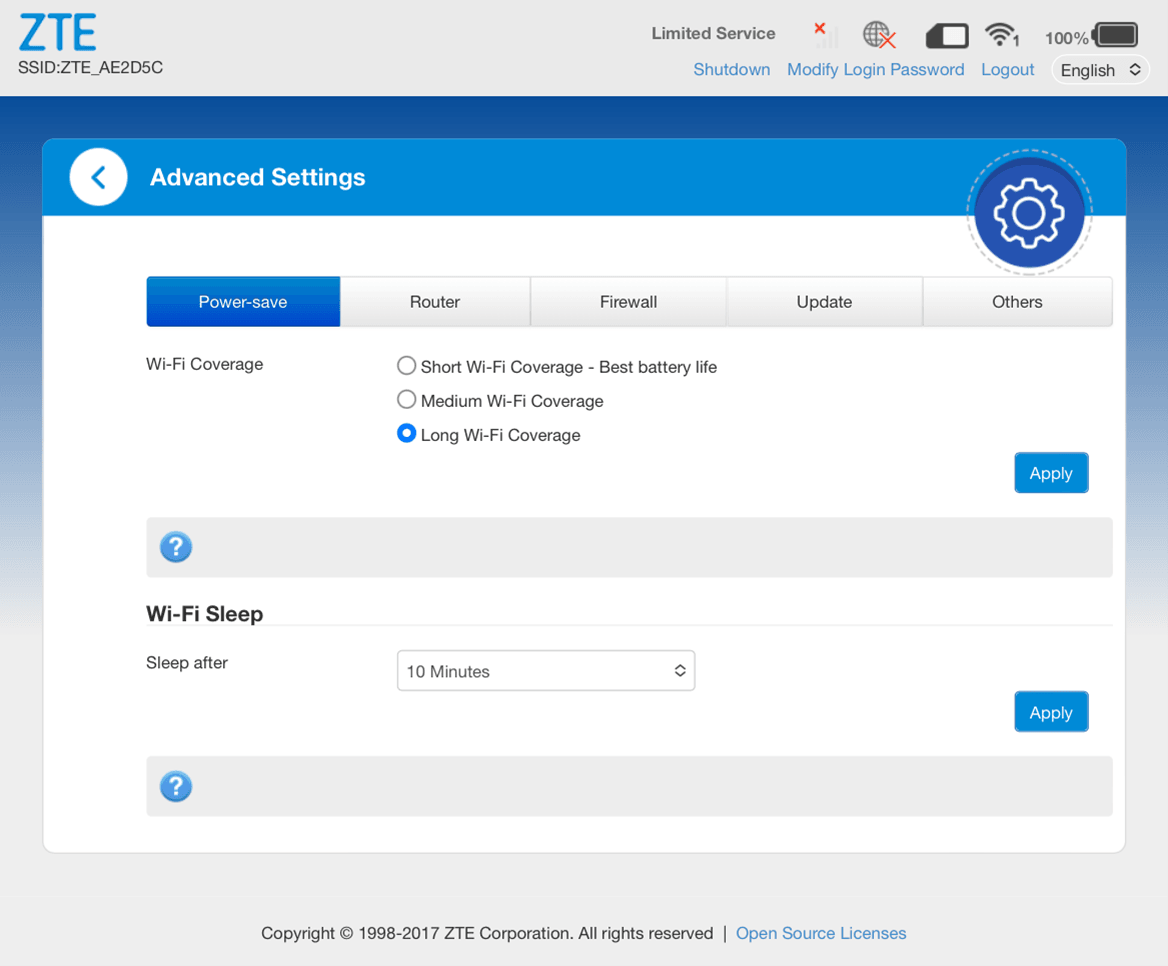
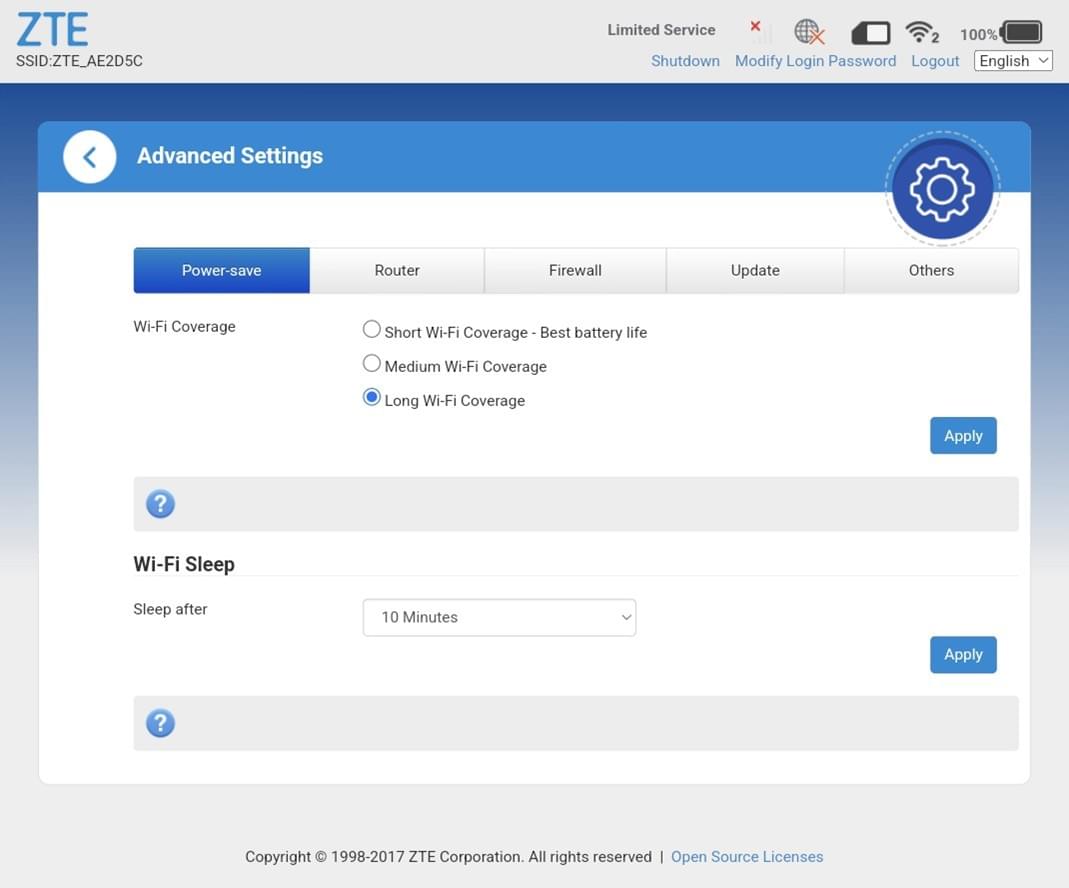
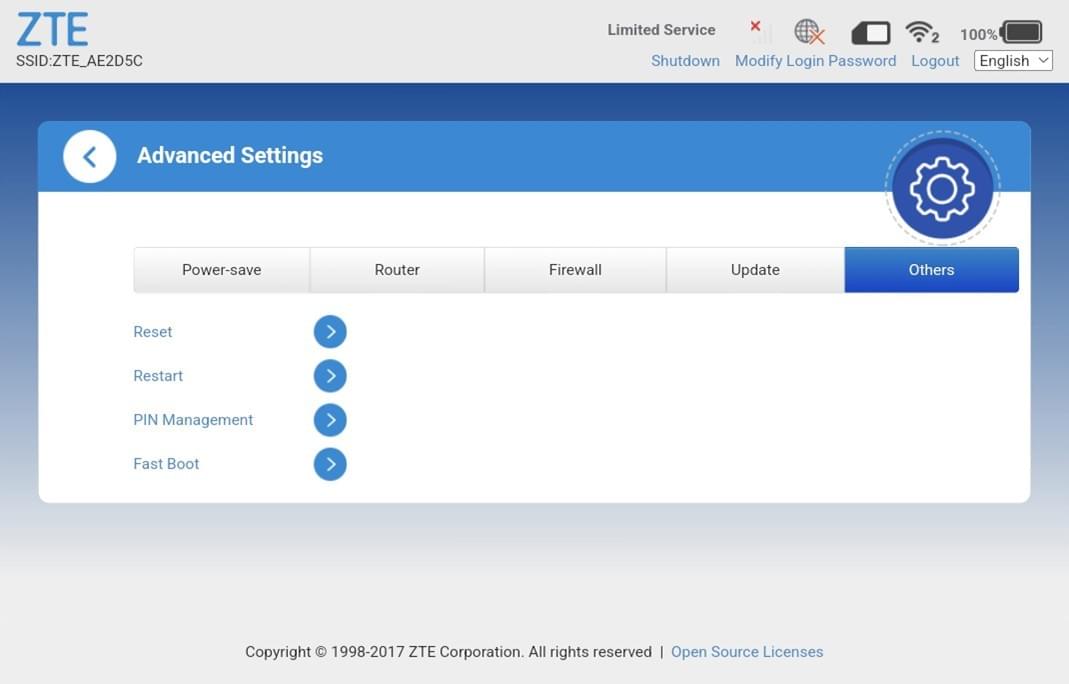
15. You will see the Advanced Settings.
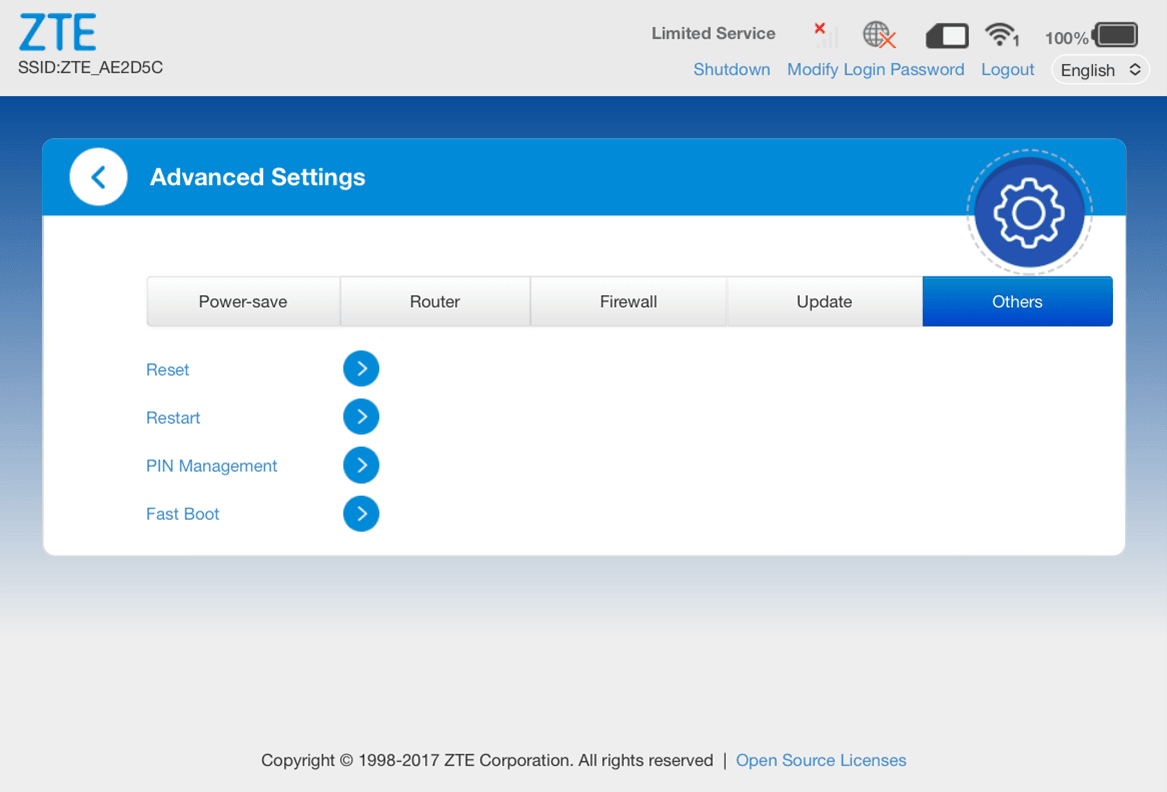
Tap ‘Others’.
Apple iPhone
Android Phone
16. Tap ‘Restart’.
Apple iPhone
Android Phone
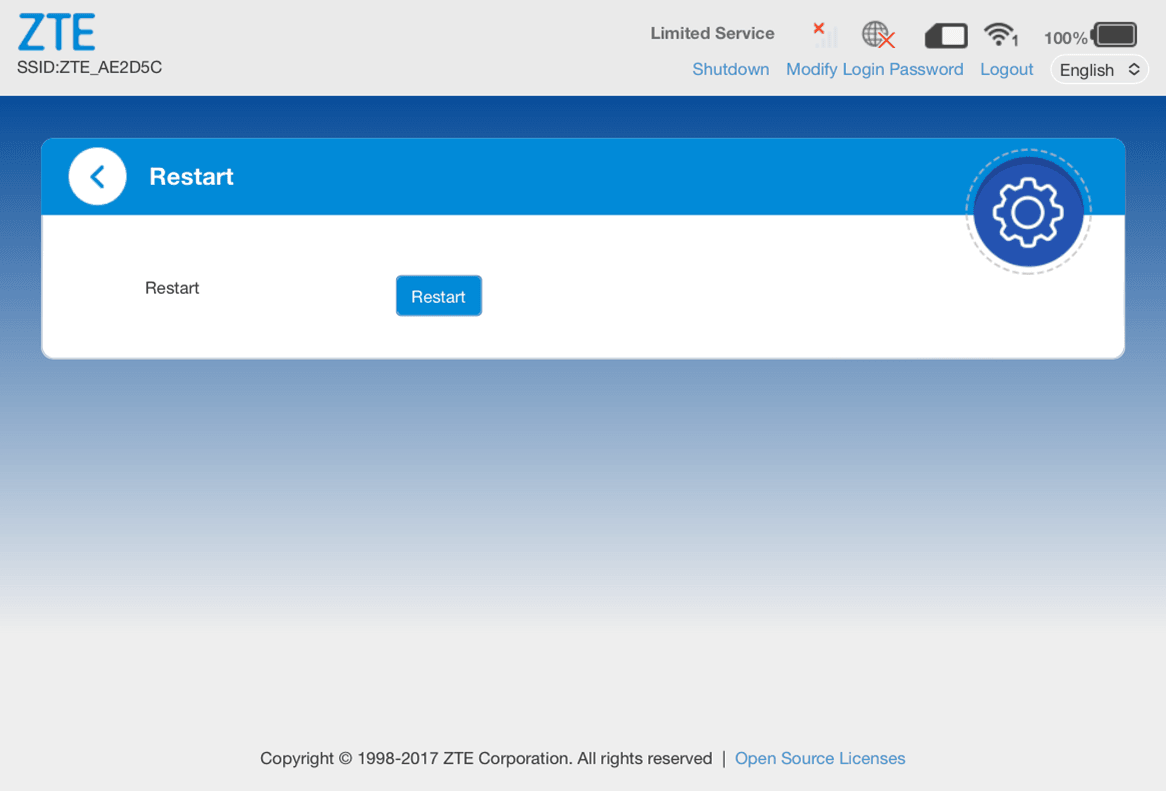
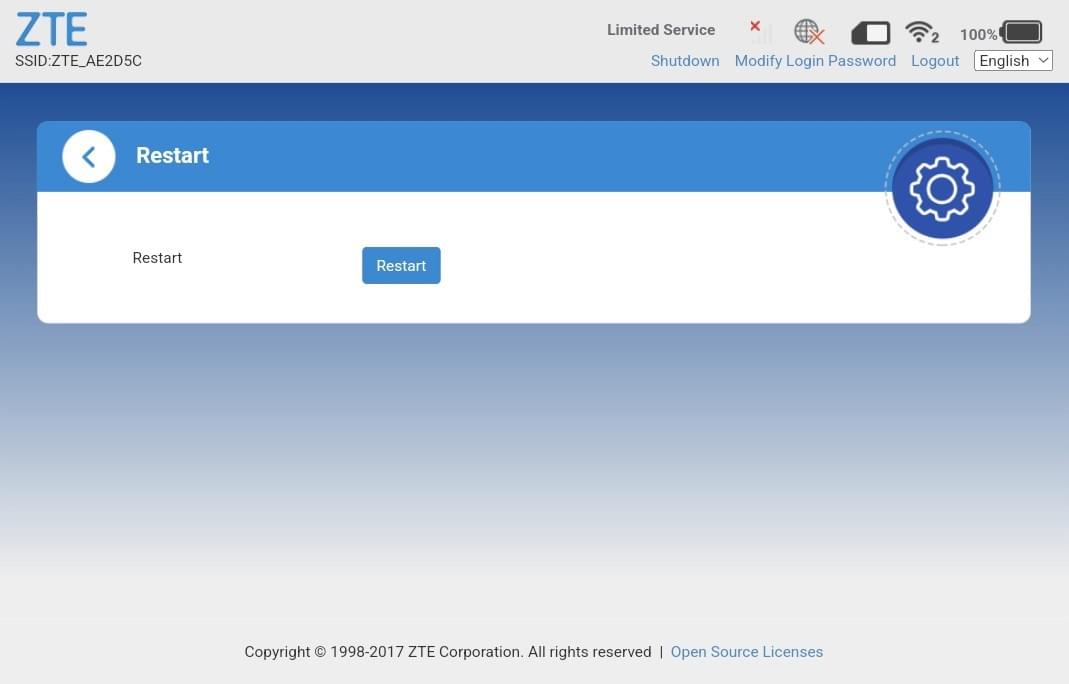
17. And tap ‘Restart’ again.
Apple iPhone
Android Phone
18. Lastly, tap ‘Yes’.
Apple iPhone

Android Phone

19. Once the router has restarted, it should connect to the internet.
You will see the connected to the internet icon show on the display on the router.
Apple iPhone

Android Phone

List of UK Networks and the APN
Vodafone: wap.vodafone.co.uk
O2: mobile.o2.co.uk
EE: everywhere
Three: three.co.uk
VOXI: pp.vodafone.co.uk
Lebara: uk.lebara.mobi
Virgin: goto.virginmobile.uk
Asda: everywhere
Talkmobile: payg.talkmobile.co.uk
Giffgaff: giffgaff.com
Sky: mobile.sky
Tesco: prepay.tesco-mobile.com
Lycamobile: data.lycamobile.co.uk
1p: data.uk
BT: bt.com
IQ: everywhere
Plusnet: everywhere
SMARTY: mob.asm.net
iD: id
FreedomPop: fp.com.attz
Superdrug: superdrug.net

